Milestones
Declare what progress means in a stage, and get a rate for it — how many of the profiles that could have reached it did.
A milestone is one thing worth detecting once inside a stage: invited a teammate, connected a data source, upgraded a plan, crossed twenty-five seats. You declare it once, Uptend detects it from the property values it already syncs, and every milestone gets the number that makes it worth declaring — how many of the profiles that could have reached it did.
Most milestones are progress, and that is the default. A milestone can also be a problem you would rather nobody reached — "hit the hard seat cap" latches once and never un-latches, so it is a milestone whatever else it is. Say which with Is firing good news? in the editor; a problem milestone keeps its own rate but is left out of the stage's progress number. See Good news or bad.
Milestones live on each stage's Signals tab, above that stage's Monitors list. A workspace starts with none: what a stage should detect in your product is the one thing we cannot guess.
Every member can read the milestone list. Adding, editing and promoting milestones is limited to workspace admins.
Overview
Each row is one milestone, with its rate on the right:
- Reached of eligible — the pair the rate is built from. A problem milestone reads affected of eligible instead, and its rate is drawn in red. "Eligible" is every profile Uptend has evaluated the milestone against in this stage; if you narrowed it with an eligibility rule, only those profiles count.
- The rate — reached ÷ eligible, over the window at the top of the page.
- Median time — how long it typically took, from the first time Uptend read the profile to the moment it reached the milestone.
- History starts here — shown when Uptend had not yet read every profile when the window opened, so the rate under-reports by exactly those profiles.
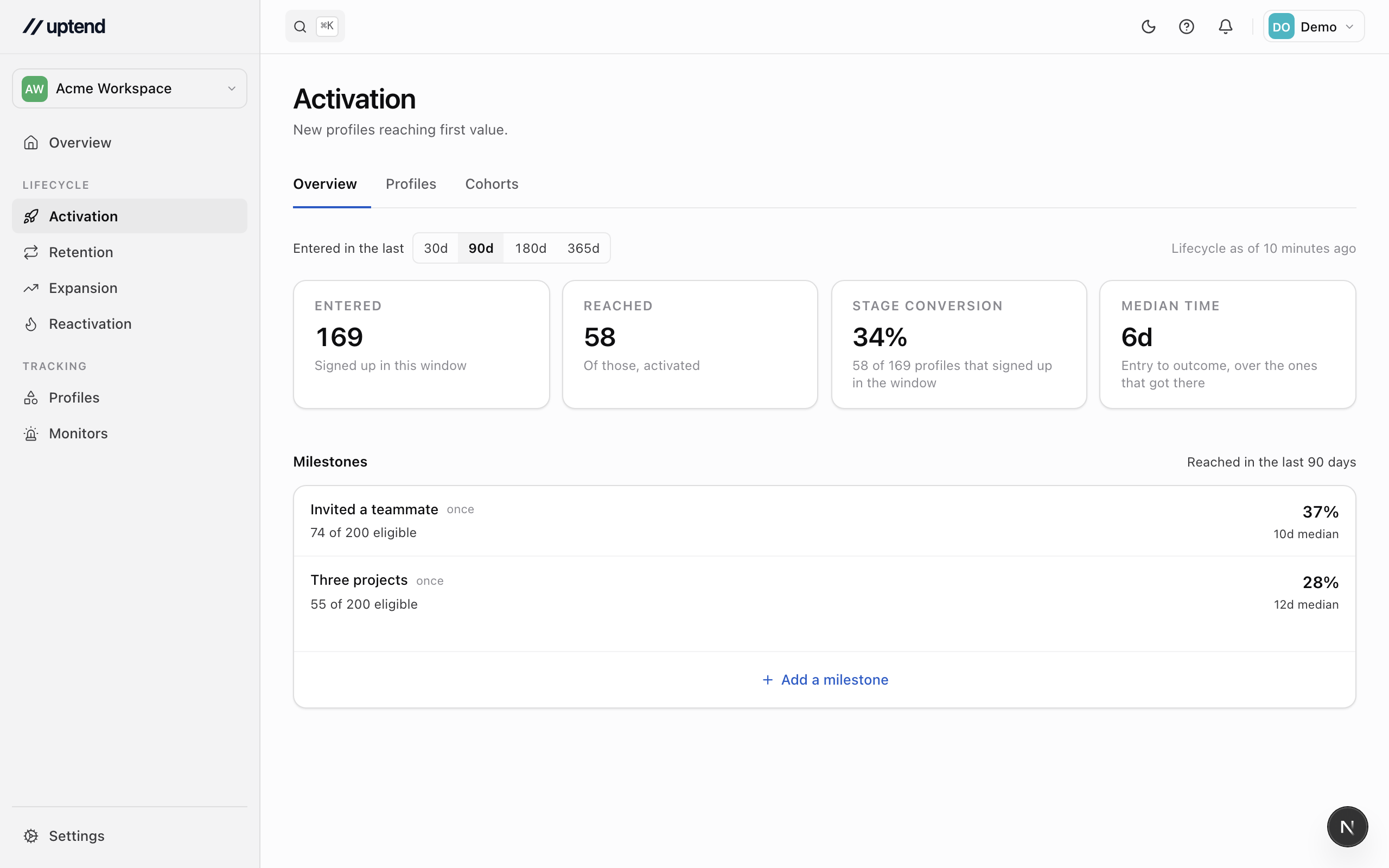
Milestones are not a funnel. They are not ordered, one does not block another, and a profile can reach the third without the first. If the order matters to you, read the rates down the list — a milestone almost nobody reaches is the interesting one whatever position it sits in.
Add a milestone
- Open a stage from the Lifecycle section of the sidebar and go to its Signals tab, which leads with the Milestones list.
- Click Add a milestone.
- Name it the way you would say it out loud — "Invited a teammate", "Plan upgrade".
- Say whether firing is good news. It defaults to progress, which is what most milestones are.
- Choose what counts as reaching it:
- A rule that becomes true — build a condition over the profile's properties. It fires once, the first time the rule holds, and never un-fires.
- A step along an ordered list — pick the property that holds the tier, then list the tiers lowest first, one per line. When the property is a choice, Use the property's values fills the list in.
- A number on the move — pick a number property, then say what counts as a move: any change, a change of at least an amount or a percentage, or crossing one of your own lines. Lines are what stop ordinary drift counting: 11 seats to 12 is not a move, 9 to 12 past the line at 10 is.
- On either of those two, say which way is forward — the direction that counts as reaching it. Up for a number you want to grow (seats, projects), down for one you want to shrink (open tickets, failed jobs). A move the other way is recorded too, as a move back. The In words box under the form reads the whole thing back to you in a sentence; if that sentence is not what you meant, change one of the three answers above it.
- Optionally turn on Only some profiles could reach this and build the rule. This is the denominator. Without it the rate is "of everyone in the stage", which is rarely the question — narrow it to a trial, a plan family, a region.
- Click Create.
A new milestone starts in Observing: it evaluates on every cycle and records what it would have caught, but counts toward nothing else until you promote it. That is deliberate — read a week of its numbers before you decide the rule says what you meant.
Promote a milestone
An observing milestone shows a Promote button beside its row. Promoting it lets it emit events and be read by other rules; its numbers do not change, because it was being measured all along.
Pausing a milestone stops it evaluating and keeps everything it recorded. Archive retires it with its history intact; Delete is offered only for one that has never been evaluated against a profile.
What a milestone remembers
- A rule-based milestone never un-reaches. Once a profile has invited a teammate, it has invited a teammate — even if the teammate later leaves. If you need something that can come back and go away again, that is a monitor.
- A tier or number milestone is a series, not a fact. It records each move forward, and each move back. Moves back feed churn risk, which is what makes a downgrade visible where it matters.
- The first reading is a baseline, not a move. Uptend keeps no history of your property values, so it cannot tell a profile that upgraded last month from one that was always on that plan. Progress is counted from the next move onward, and the first window is marked History starts here.
- Changing which way is forward re-baselines it, like any other change to what it detects: the counts either side of the flip are measuring different things. Editing what a milestone detects re-baselines every profile on the next evaluation — the old readings were taken under a definition that no longer exists. Renaming or reordering does not.
Milestones and the Expansion stage
The Expansion stage's milestones are the same object as every other stage's. Declaring one is what tells Uptend your product has an expansion motion at all, and the stage's own charts — the growth rate, the recent moves, "who is next" — read the milestones you put there.
The Track expansion switch under Settings → Lifecycle is still how a single-tier product says the stage does not apply to them.
Defining the lifecycle
Set the rules that place every profile in a lifecycle state, say what counts as growth, and preview a change before it recomputes.
Retention and expansion overviews
Read the Retention and Expansion overviews — who is slipping, who is growing, and how each activation cohort holds up over time.